

Access Control Guidelines
Last updated: · Published:
We’ve made access control simpler and easier to manage. This article explains what’s new and how to use the updated system.
Overview
The Access Control system governs what users can view and modify on the platform. By assigning one or more roles to a user, you configure their permissions, and the interface dynamically adapts to those roles. For instance, content editors will only have access to content-related features.
What Are Permissions?
Permissions control actions on resources:
Action
- Read: view resource
- Create: add new resource
- Update: edit existing resource
- Delete: remove resource
Resources
Resources are organized by groups:
- Access Control: users, roles and API integration/webhooks
- Content: posts, generic content, site settings, authentication objects, clipboard items and media library
- Content Model: content types (post type, section type, element type, generic content type), tray type, authentication type, content field and content field definition
- Theming: themes, theme files, liquid profiles
- Organization: companies, partners, form messages, domains, sites, version control and redirects
- Multicontent: shared content such as connections between sites, rules, rules assignment and connections between content.
Note: If you are allowed to edit posts, then you are allowed to edit not only their post settings but their sections, rows, columns and elements.
Permission Levels
Permissions can be set at three levels:
- Site: permissions for a specific site
- Company: permissions for a specific company plus permissions across all sites in that company
- Partner: permissions for a specific partner plus permissions across all companies and sites in that partner
Note: Having permissions at a higher level allows you to perform actions at lower levels. For example, if you don't have permission for editing roles on "Site A" but you have that permission at the partner level, you can still edit roles on Site A.
Specific Permissions for post type at Site-Level
At the site level, for content, you can specify which post types an editor can manage.
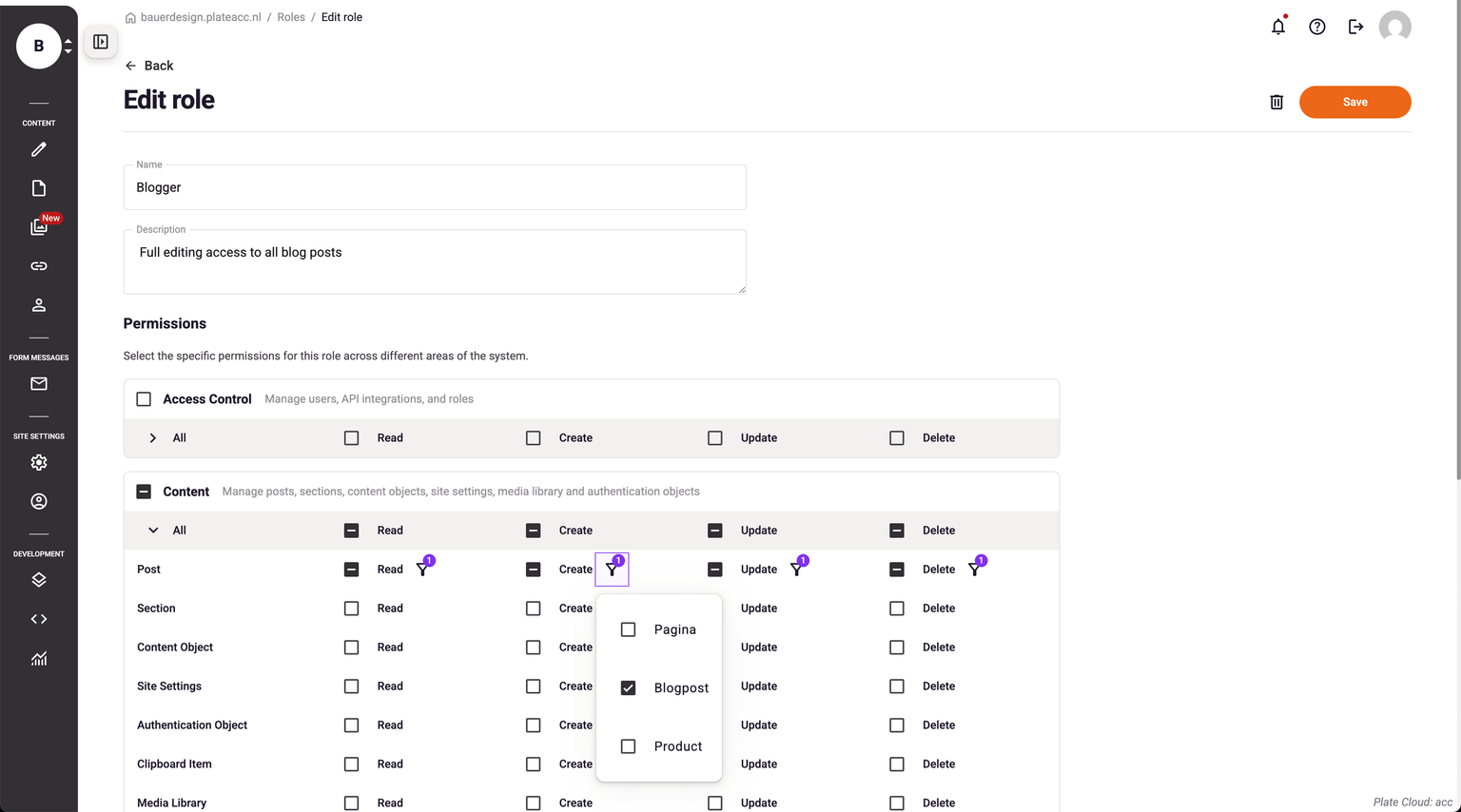
When a user has permission to edit a specific post type (such as blog posts) at the site level, they can edit posts of that type along with all nested content: sections, rows, columns, and elements within those posts. However, they cannot edit media library items or generic content, as these resources are shared across multiple post types and require separate permissions.
Default Roles and permissions
When you create a new level (site, company, or partner), three default roles are automatically created to help you get started:
- Administrator: Full access to all resources and permissions at the level where the role is created. Administrators can manage content, users, roles, settings, and all other system features without restrictions.
- Developer: Full access to most resources, except for managing roles and users. Developers can create and edit content, modify themes, configure settings, and work with API integrations, but cannot manage access control (users and roles). This role is ideal for implementation team members who need broad system access without administrative privileges.
- Content Editor: Access limited to content-related resources. Content Editors can read, create, update, and delete content (posts, generic content), manage the media library, and work with site settings. They cannot access theming, organization settings, or access control features. This role is designed for content creators and editors who focus on content management.
Note: These default roles can be customized or additional roles can be created to match your organization's specific needs. Permissions for these roles can be modified after creation.
Frequently Asked Questions
Q: Why can I see content but not edit it?
A: You have read permission but not update permission. Contact your administrator to request edit access.
Q: Why can I edit some posts but not others?
A: Permissions for posts can be set per content type. You may have access to some types but not others.
Q: I used to be able to do this, why can't I now?
A: Your permissions may have changed. Contact your administrator to verify your current role.
Q: Can I request additional permissions?
A: Yes. Contact your site or company administrator with details about what you need.
Q: What's the difference between site, company, and partner permissions?
A:
- Site: permissions for a specific site
- Company: permissions across all sites in a company
- Partner: permissions across all companies and sites under a partner